

How to Invite a Partner to Meta Business Manager (Step-by-Step Guide)

Adam Gibbs
Adam Gibbs
AI-free content
📅 Updated: 28 October, 2025 / ⏱️ 2 min read

In a world driven by digital-first strategies, working collaboratively is paramount to scaling marketing success online. Whether it’s managing multiple Facebook Pages, Instagram accounts, ad accounts, or pixels, Meta Business Manager (now commonly referred to as Meta Business Portfolio) is the platform that helps businesses manage access and control.

However, as the marketing process expands, you’re likely to need to collaborate with agencies, freelancers, or external partners who help manage campaigns, analyze insights, or handle creative assets—which is where the last feature, “Invite Partner” in Meta Business Manager, comes into the picture.

In this blog, we’ll walk you through everything you need to know about inviting a partner to your Meta Business Manager, including step-by-step instructions and permissions to keep your business assets secure.


Table of Contents

Share:

Step-by-Step: How to Invite a Partner to Meta Business Manager

Let’s break down the process step by step.

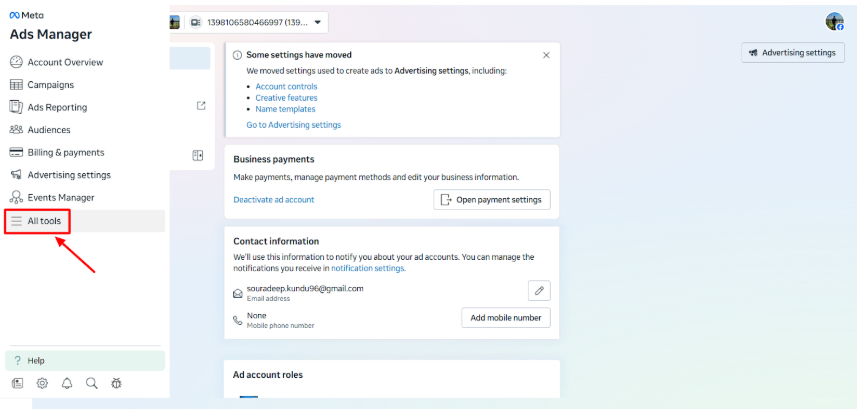
Step 1: Go to Your Meta Ads Manager

Open the Meta Ads Manager and then click “All tools” in the left sidebar.
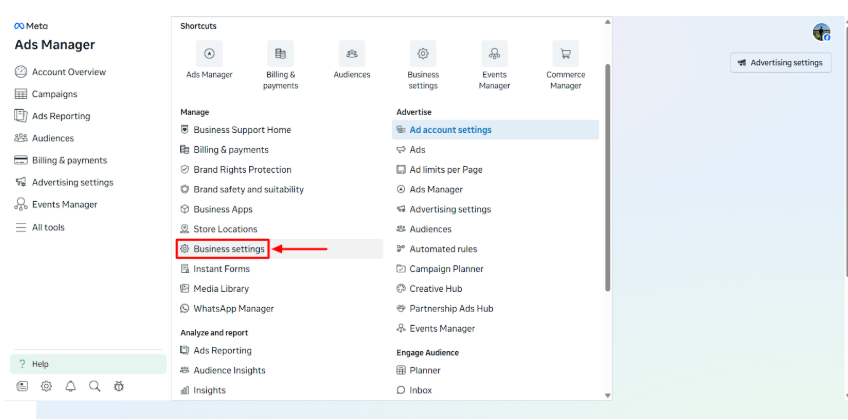
Step 2: Select Business Settings

Once done, click “Business Settings” under the manage list.
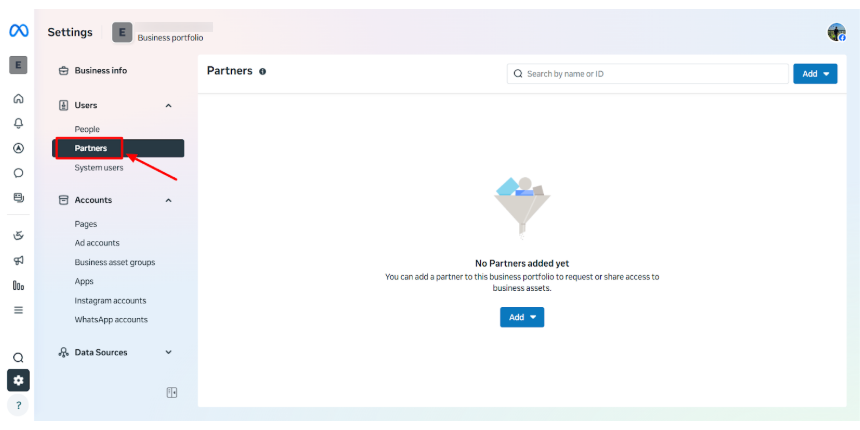
Step 3: Select Partners

Under the Users section, click “Partners.”
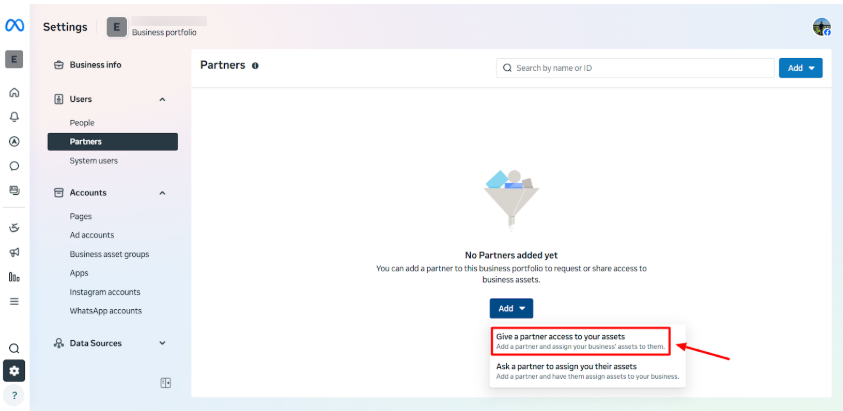
Step 4: Give Access

Click the blue “Add” button and then select “Give a partner access to your assets.
Step 5: Enter the Partner’s Business ID

You’ll be prompted to enter your partner’s Business Manager ID. Paste that ID into the box and click Next.
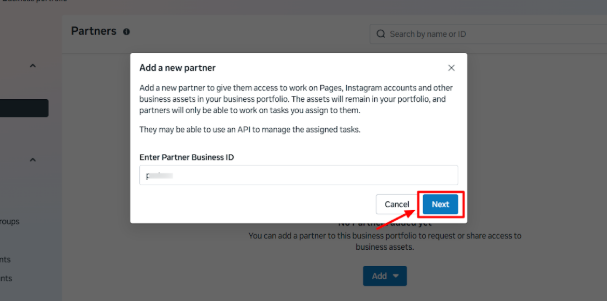
Your partner will now see the shared assets in their own Business Manager under the “Partners” or “Accounts” section. Once accepted, they’ll have the access level you granted.

Conclusion

Inviting a partner to your Meta Business Manager (Portfolio) is one of the most secure and efficient ways to collaborate on Facebook and Instagram marketing. It ensures your brand retains full ownership of its assets while giving partners the flexibility to work effectively.

Remember:

  • Always use Partner access instead of sharing logins.
  • Review permissions regularly.
  • Maintain transparency and security across all assets.

By following the steps outlined in this guide, you can confidently manage your Meta assets, scale your marketing partnerships, and protect your business data, all within a single, organized platform.


FAQs

Your partner can find their Business Manager ID by following these steps:

Go to Business Settings → Business Info.

Look for the Business Manager ID (a 15–16 digit number).
You’ll need this ID to send them an invite from your Business Manager.

You can share nearly all business assets in Meta Business Manager, including:

  • Facebook Pages
  • Instagram Accounts
  • Ad Accounts
  • Pixels
  • Catalogs
  • Apps
  • Custom Audiences
  • Domains

Each asset type has specific permissions (like “View,” “Advertiser,” or “Admin”) that you can assign.

The permissions depend on your working relationship:

  • If your partner runs ad campaigns, grant them Advertiser access to the Ad Account and Pixel.
  • If they manage your Page, give them Editor or Admin access.

Always use the least privilege principle — give only what’s necessary and adjust later if needed.

No. A Partner can only access the specific assets you choose to share with them. For example, if you share only your Ad Account and Pixel, they won’t be able to view your Facebook Page or other data unless you grant additional permissions.

Written by Adam Gibbs

Adam is a skilled SEO content expert with a proven track record of crafting high-quality, keyword-rich content that drives traffic, engages readers, and ranks on search engines. With 10+ years of experience in digital marketing and content strategy, Adam specializes in creating blog posts, website copy, and marketing materials tailored to both audience needs and SEO best practices.

Related Posts

  • All Posts
  • SEO
Load More

End of Content.

Scroll

Our site uses cookies. By using this site, you agree to the Privacy Policy and Terms of Use.

0%