



Understanding the Shopify Staff Account
A “staff account” on Shopify allows extra users (like employees or agencies) to access your store’s admin without sharing your personal login.
Staff accounts can create their own email and password which aids in tracking activity and account security.
Depending on the permissions you grant, staff members can:
- Manage orders and products
- Edit store themes
- Handle marketing and discount codes
- View reports and analytics
- Access apps or integrations
- Manage settings or billing (if allowed)
Shopify’s role-based access system ensures every user only sees and does what’s necessary for their job.
Step-by-Step: How to Create a Shopify Staff Account
Creating a staff account only takes a few minutes. Here’s how:
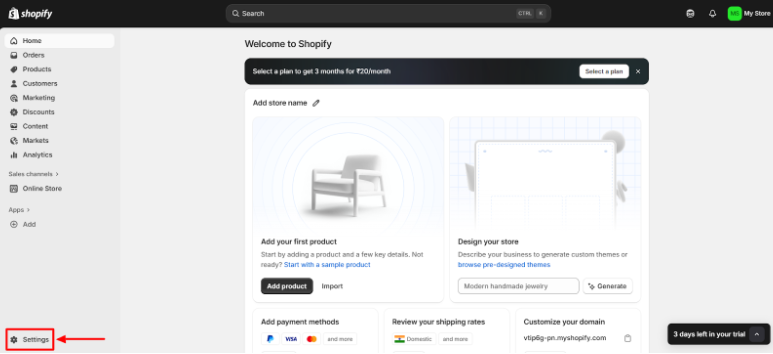
Step 1: Log in to Your Shopify Admin
Go to shopify.com/admin and log in as the store owner. Then click “Settings.”
Step 2: Navigate to Users
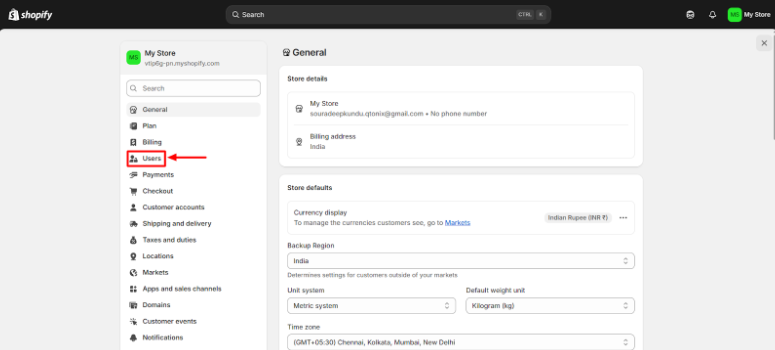
In the Shopify Admin dashboard, select Users.
Step 3: Add Staff
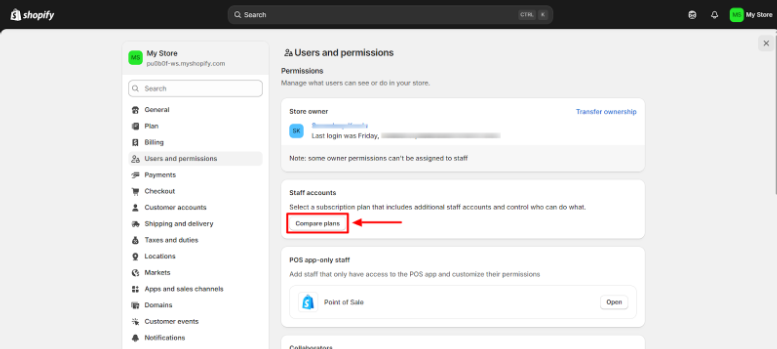
Click “Compare Plans” to select a membership plan that includes additional staff accounts.
Step 4: Enter Staff Information
Once you’ve selected the plan:
- Click “Add staff”, and you’ll see a form to enter the staff member’s details.
- Enter staff information (First name, last name, and email address).
- Once you’ve configured the permissions, click Send invite.
The staff member will receive an email invitation with a link to set up their account.
Conclusion
One of the simplest — but possibly the most effective — ways to help protect your store and improve collaboration is to create Shopify staff accounts with the correct permissions.
Following these steps will help to ensure that:
- Each team member has the appropriate access.
- Sensitive information is kept secure.
- Store operations are structured and in the open.
As you grow your Shopify business, it is even more critical to manage access appropriately; unlike a ramp that leads to restricted access, think of permissions as ways to improve efficiency and trust in your team.


- All Posts
- SEO
Mastercopy Table of Contents Book Intro Call Case Studies Share: Related Guides: Related Posts SEO Beyond Keywords: Why Schema Markups...
Mastercopy Table of Contents Book Intro Call Case Studies Share: Related Guides: Related Posts SEO Beyond Keywords: Why Schema Markups...

Mastercopy Table of Contents Book Intro Call Case Studies Share: Related Guides: Related Posts SEO Beyond Keywords: Why Schema Markups...
Mastercopy Table of Contents Book Intro Call Case Studies Share: Related Guides: Related Posts SEO Beyond Keywords: Why Schema Markups...