

How to Add a Collaborator to Your LinkedIn Company Page (Step-by-Step Guide)
If you’re running a business or organization, your LinkedIn Company Page is an essential tool. It’s where you share news, interact with followers, post jobs, and create a professional brand presence. But you don’t – and shouldn’t – do that all by yourself. Whether you’ve got a marketing team, social media agency, or someone you trust on your team, giving access for assistance with your LinkedIn Page can increase efficiency, expand the scalability of your content, and create a greater flow of collaboration.
In this blog, “collaborator” means someone you grant admin or editorial access to your LinkedIn Company Page so they can help post updates, reply to comments, view analytics, or run ads. LinkedIn supports several roles (with differing levels of permissions).
Key Steps to Add A Collaborator to A LinkedIn Company Page
Let’s have a look at the key steps of adding a new member to collaborate with.
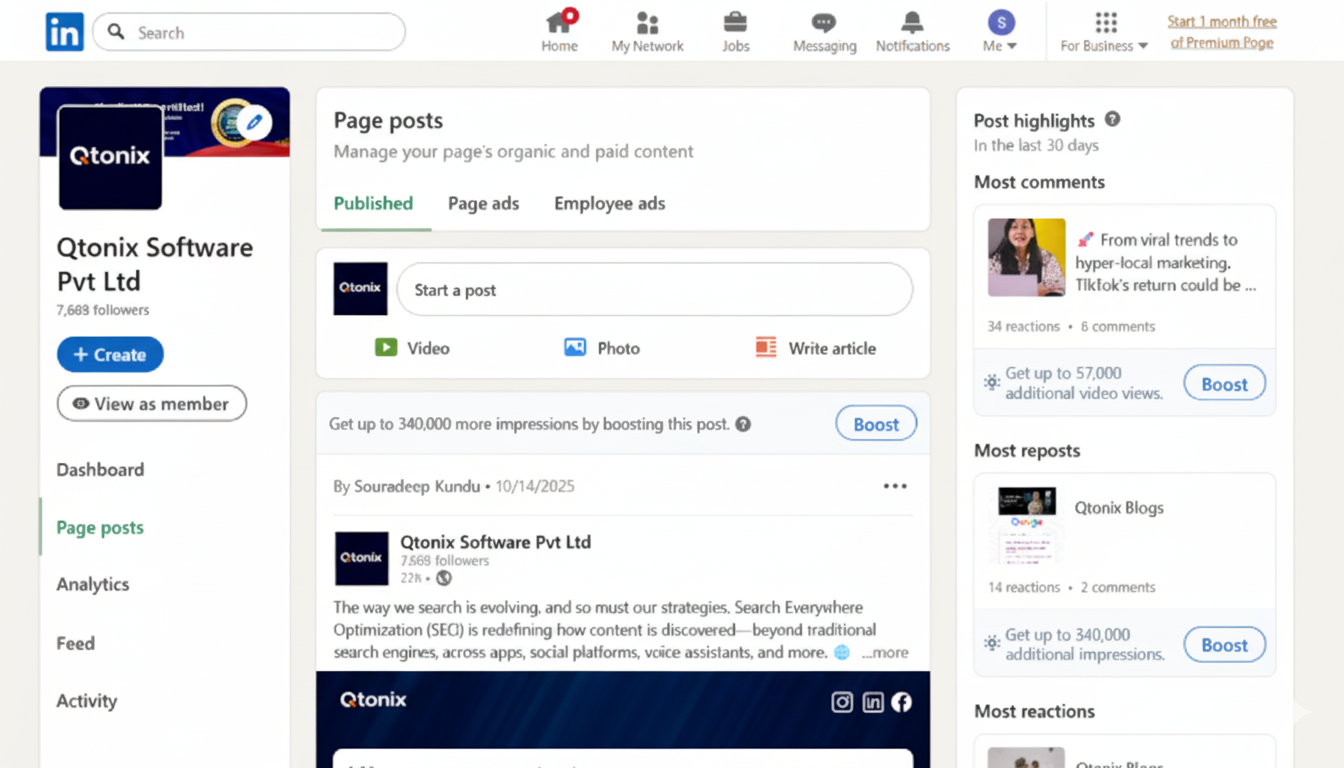
Step 1: Open Your LinkedIn Profile
Go to your LinkedIn Company Page.
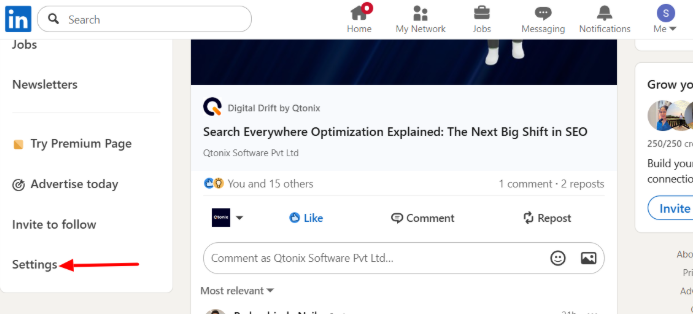
Step 2: Click “Settings”
Scroll down the left-side menu and then click “Settings.”
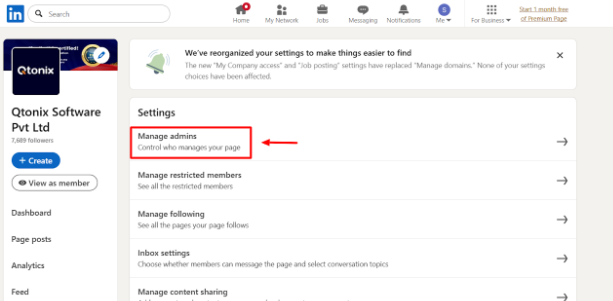
Step 3: Select “Manage Admins”
Now, click “Manage Admins” to add a collaborator.
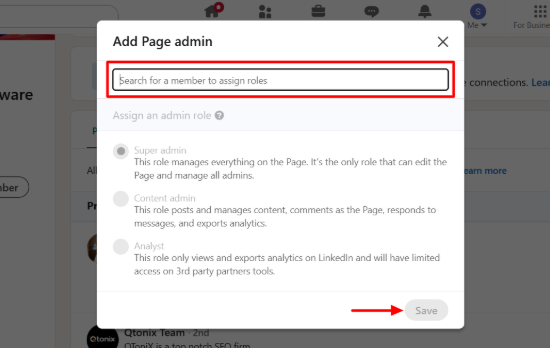
Step 4: Add A Collaborator
Now, search for a member to collaborate with and then click “Save.”
Conclusion
Adding a collaborator to your LinkedIn Company Page is a smart move for scaling your content operations, improving responsiveness, and leveraging external help. But it must be done carefully.
- Understand the different admin roles (Super Admin, Content Admin, Analyst, Paid Media Admin)
- Use the “Manage Admins / Add Admin” path from Admin Tools to grant access
- Use the principle of least privilege — give people only the access they need
- Regularly review and audit who has access
- Always maintain at least two trusted admins
With proper setup and communication, your team (or agency) can help your LinkedIn Page grow and thrive, without compromising your control or security.
FAQs
LinkedIn offers several roles:
- Super Admin: Full control over the Page, including adding/removing admins.
- Content Admin: Can post updates, reply to comments, and manage Page interactions.
- Analyst: Can only view and export Page analytics.
- Paid Media Admin: Manages LinkedIn ads and sponsored campaigns.
You’re likely not viewing the Page in Admin View, or you don’t have Super Admin privileges. Check the top of your Page to ensure you’re in admin mode. If the option is still missing, ask an existing Super Admin to verify your role.
There’s no strict published limit from LinkedIn, but best practice is to keep your admin list lean — usually between 2 to 10 trusted collaborators — to reduce confusion and maintain control.
If all Super Admins have left the organization or you’ve been locked out:
- Try reaching out to a current Super Admin to reassign your access.
- If that’s not possible, contact LinkedIn Support and provide proof that you represent the company (e.g., using an official company email domain).
Written by Adam Gibbs
Adam is a skilled SEO content expert with a proven track record of crafting high-quality, keyword-rich content that drives traffic, engages readers, and ranks on search engines. With 10+ years of experience in digital marketing and content strategy, Adam specializes in creating blog posts, website copy, and marketing materials tailored to both audience needs and SEO best practices.
Related Posts
- All Posts
- SEO
Mastercopy Table of Contents Book Intro Call Case Studies Share: Related Guides: Related Posts SEO Beyond Keywords: Why Schema Markups...


Mastercopy Table of Contents Book Intro Call Case Studies Share: Related Guides: Related Posts SEO Beyond Keywords: Why Schema Markups...